Record it in the field.
Come back to the details when you need them.
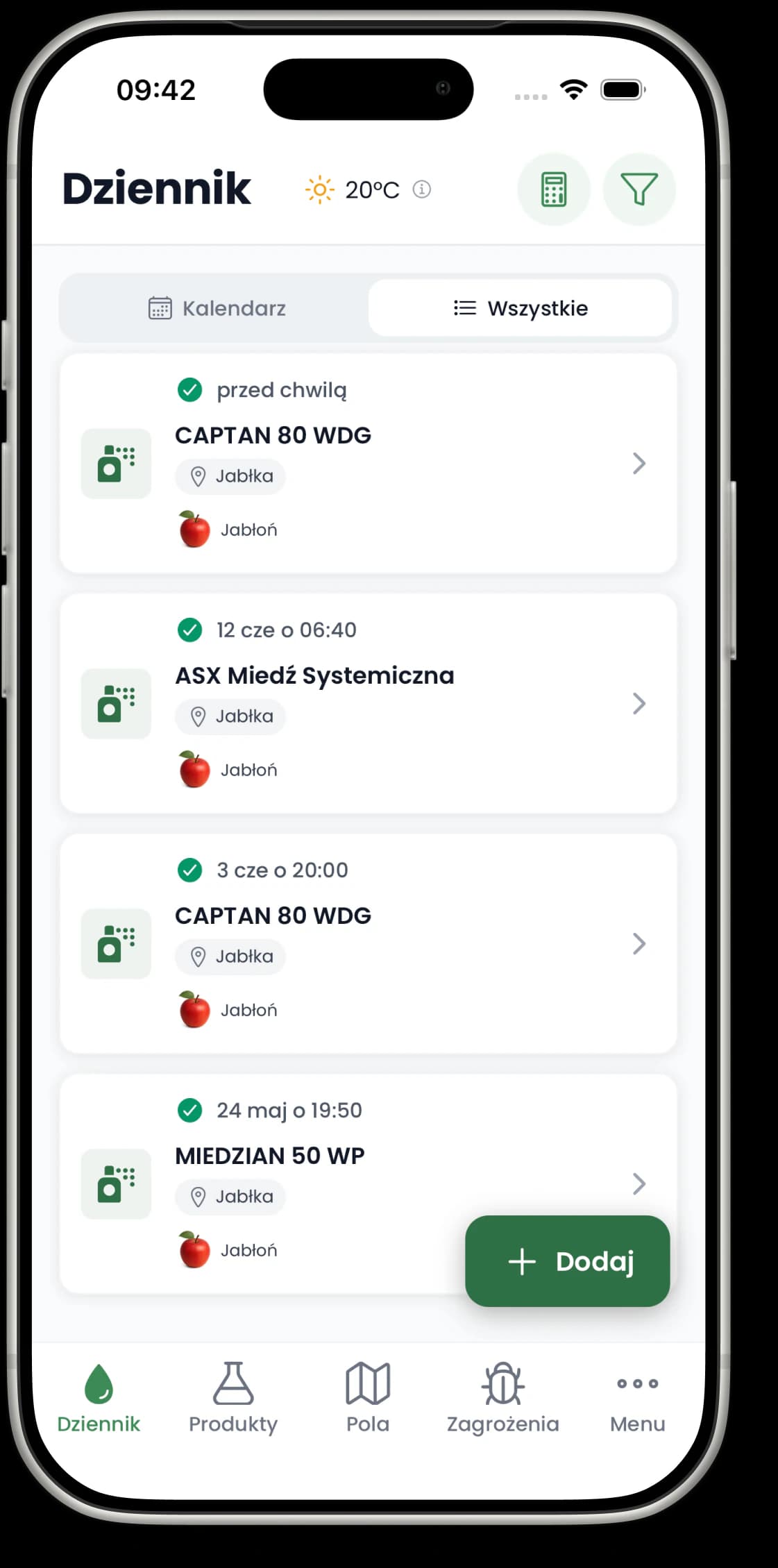
The field, crop, product, dose and date stay together with each treatment. Browse your history on your phone or computer, and download the data you choose to a file.
This is what an exported register looks like.
Six example treatments in one document: product, dose, date, plot, crop and reason for use. The data shows the export layout and is not a recommendation to carry out these treatments.
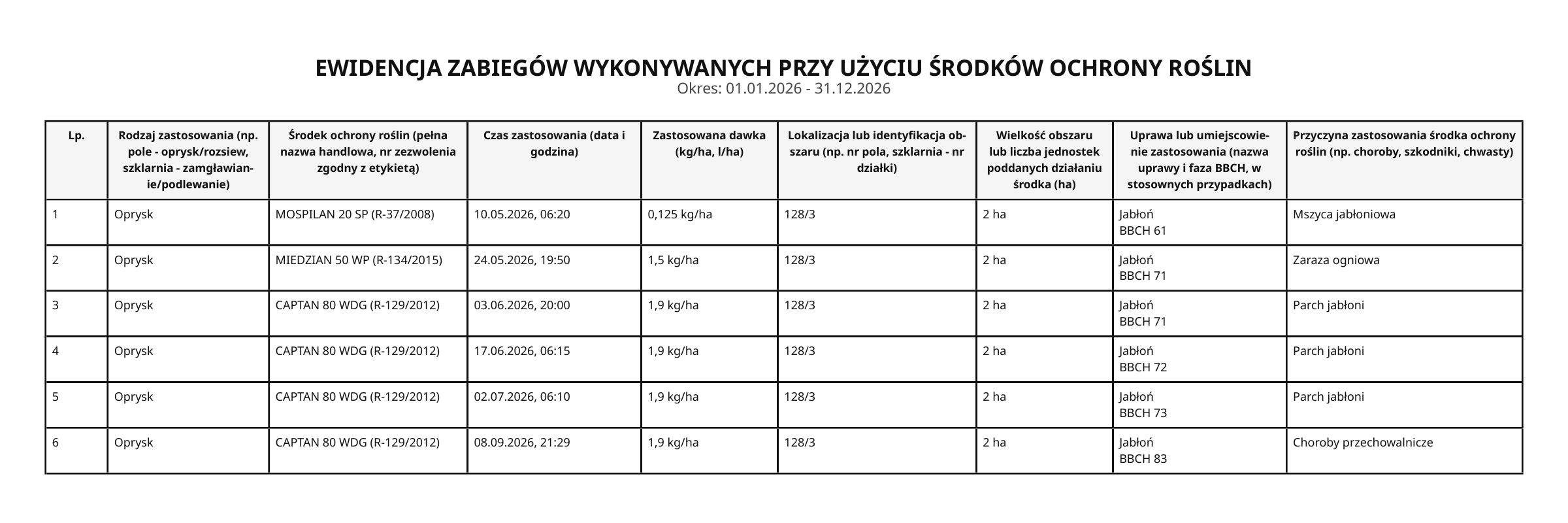 Open the PDF to zoom in
Record the details
Choose fields and crops, then add products and amounts. The calculator helps you work out the dose, and for selected products you can open the PDF label.
Keep plans and completed work apart
Record treatments you have carried out and ones you are planning. Your journal can also hold work without a product, harvests and notes.
Find an earlier entry
Narrow your history down to a period, field, crop or product. Open an entry to check the details you saved.
Pick a range. Download the data you need.
A month, a year, your own date range or all entries. You can also limit the export to selected fields and crops.
Standard export
Treatments, other work and harvests
Tick one or more kinds of data. For treatments you can choose the status, product, application method and worker, among other things.
Plant protection register
Treatments with plant protection products
A separate export layout for entries with products marked as plant protection products (PPP). It is available once you set the user type to “Professional” in Preferences.
PDF for printing and your records
A ready-made document with the data you chose, to keep or share.
CSV for working in Excel
Open the file in a spreadsheet to sort and filter the data and build your own summaries.
Before you start
Why can’t I see the plant protection register option?
Why is an entry missing from the plant protection register?
Will the app fill in missing data for me?
Can I export on a computer?
Start with your first entry.
Record a treatment, check your history and see what your register looks like.
Up to 3 entries on the free plan. Pricing